Build a Simple Windows Forms Login Application in C#
C# and .NETbeginnersql-serverwinformsado-net
Site Admin · 3/22/2020
Site Admin · 3/22/2020
In this tutorial you will build a small Windows Forms application in C#. A login form checks the user name and password against a table in SQL Server, and a master form then shows the name of the user who logged in.
For learning only. To keep the example short, the password is stored and compared as plain text. In a real application store a salted hash of the password (for example with PBKDF2 or bcrypt) and compare hashes, never the password itself.
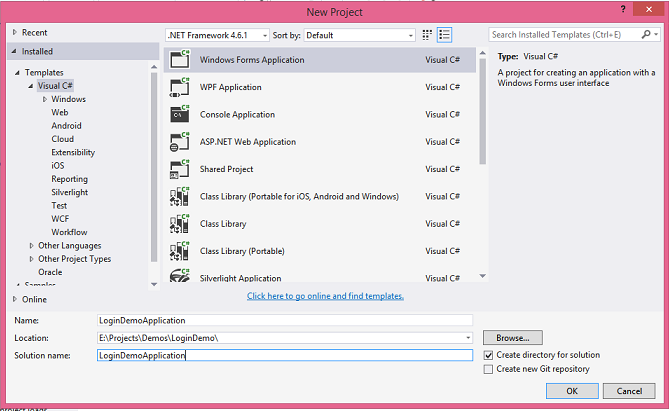
In Visual Studio open the File menu, choose New, then Project. Select Windows Forms Application under Visual C#, name the project and click OK.
Add two text boxes and two buttons to the form and give them these names in the Properties window: , , and . For , set the property to so the typed password is hidden.
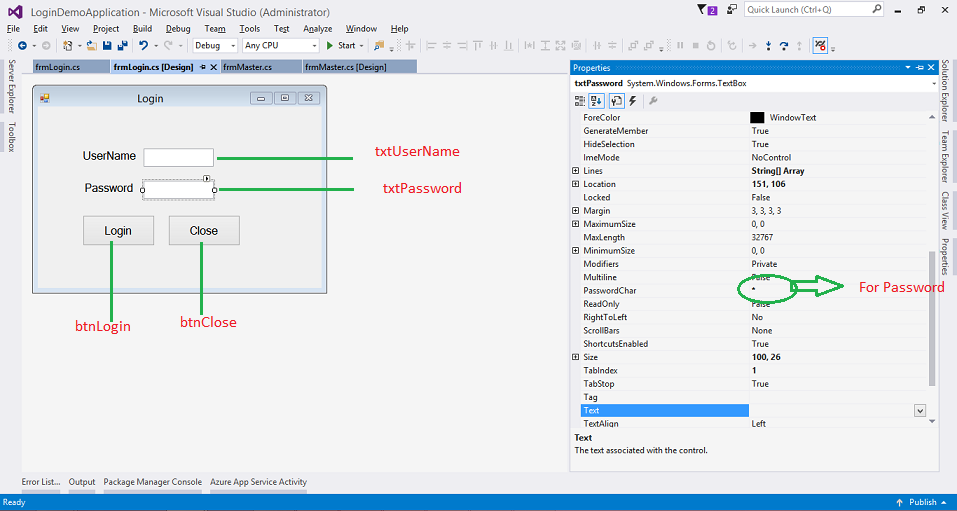
Then double-click each button to create its click handler, and add the code to :
Add a second form named with a label and two buttons and . It shows the user name after a successful login.
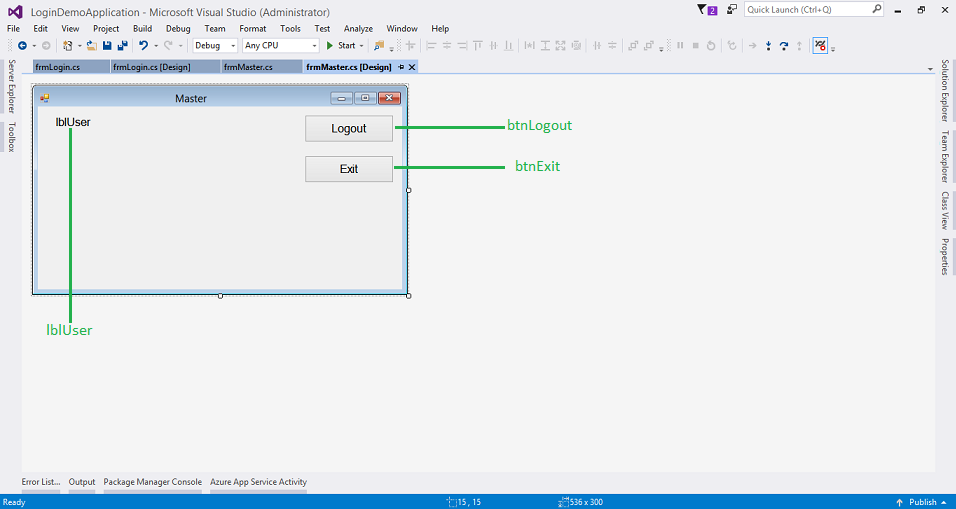
The code for :
In SQL Server Management Studio create a database named and run this script in it:
Run the application and log in as with the password : the master form opens and shows .
LoginDemoApplicationtxtUserNametxtPasswordbtnLoginbtnClosetxtPasswordPasswordChar*frmLogin.csfrmMasterlblUserbtnLogoutbtnExitfrmMaster.csDEMODBAdminAdminpassAdmin Userusing System;
using System.Data;
using System.Data.SqlClient;
using System.Windows.Forms;
namespace LoginDemoApplication
{
public partial class frmLogin : Form
{
// database connection string
string connectionString = "Server=127.0.0.1;Database=DEMODB;uid=sa;pwd=YourPassword;";
public frmLogin()
{
InitializeComponent();
}
private void btnLogin_Click(object sender, EventArgs e)
{
// validate your fields
if (string.IsNullOrEmpty(txtUserName.Text))
{
MessageBox.Show("User Name can not be empty");
txtUserName.Focus();
return;
}
if (string.IsNullOrEmpty(txtPassword.Text))
{
MessageBox.Show("Password can not be empty");
txtPassword.Focus();
return;
}
// connection with database
SqlConnection con = new SqlConnection(connectionString);
SqlCommand cmd = new SqlCommand("Select * from UserMaster where UserName=@username", con);
cmd.Parameters.AddWithValue("@username", txtUserName.Text);
con.Open();
SqlDataAdapter adapt = new SqlDataAdapter(cmd);
DataSet ds = new DataSet();
adapt.Fill(ds);
con.Close();
if (ds.Tables[0].Rows.Count == 0)
{
MessageBox.Show("Invalid User Name/Password");
return;
}
// check password
if (ds.Tables[0].Rows[0]["Password"].ToString() != txtPassword.Text)
{
MessageBox.Show("Invalid User Name/Password");
return;
}
frmMaster.DisplayName = ds.Tables[0].Rows[0]["DisplayName"].ToString();
frmMaster master = new frmMaster();
this.Hide();
master.Show();
}
private void btnClose_Click(object sender, EventArgs e)
{
Application.Exit();
}
private void frmLogin_FormClosing(object sender, FormClosingEventArgs e)
{
Application.Exit();
}
}
}using System;
using System.Windows.Forms;
namespace LoginDemoApplication
{
public partial class frmMaster : Form
{
public static string DisplayName;
public frmMaster()
{
InitializeComponent();
}
private void btnLogout_Click(object sender, EventArgs e)
{
frmLogin login = new frmLogin();
login.Show();
this.Hide();
}
private void frmMaster_Load(object sender, EventArgs e)
{
lblUser.Text = DisplayName;
}
private void btnExit_Click(object sender, EventArgs e)
{
Application.Exit();
}
private void frmMaster_FormClosing(object sender, FormClosingEventArgs e)
{
Application.Exit();
}
}
}CREATE TABLE UserMaster
(
id INT IDENTITY(1,1) PRIMARY KEY,
UserName VARCHAR(50) NOT NULL,
Password VARCHAR(50) NOT NULL,
DisplayName VARCHAR(50) NOT NULL,
Active INT NOT NULL DEFAULT (1)
);
GO
INSERT INTO UserMaster (UserName, Password, DisplayName, Active) VALUES ('Admin', 'Adminpass', 'Admin User', 1);
INSERT INTO UserMaster (UserName, Password, DisplayName) VALUES ('User1', 'userpas', 'User One');
Comments
Loading comments…